Finding your way round
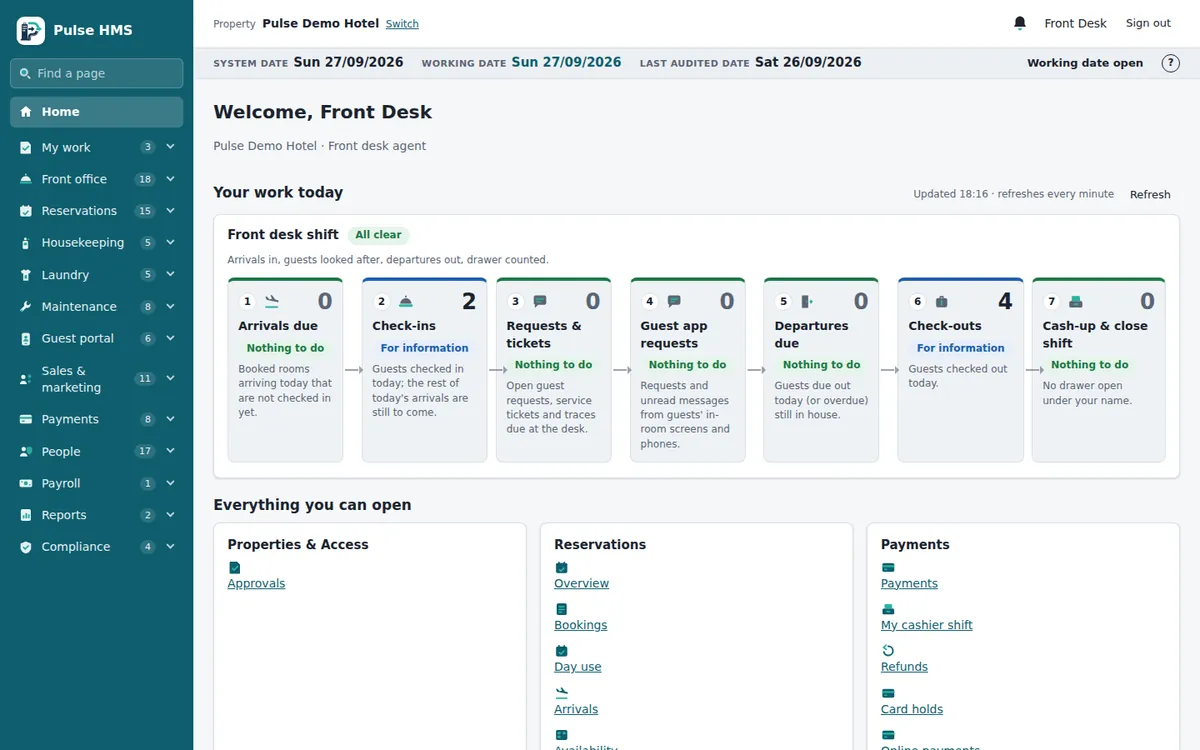
The three areas of every page
- The sidebar on the left: the Pulse logo (click it to go Home), the Find a page box, and the groups of pages your roles allow, such as Front office, Reservations or Housekeeping.
- The top bar: the property you are working in, with Switch, the notification bell, your name and Sign out.
- The page itself: its title, a one-line explanation, its buttons on the right of the title, then its content.

Opening a page
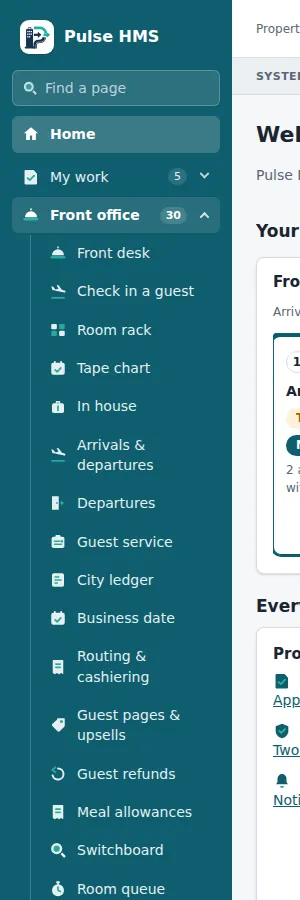
Click a group name in the sidebar to open it; its pages are listed underneath. You can keep several groups open, and Pulse remembers them for you on that browser.
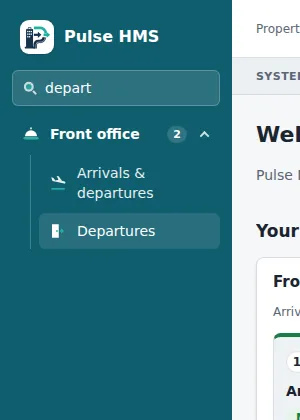
The quickest way to any page is Find a page: type part of its name, for example depart, and pick it from the list. It searches every group you are allowed to open.
Reading the screen
| You see | It means |
|---|---|
| A coloured badge such as Confirmed or Pending | The status of a record. Green is done or good, amber needs attention, red is refused, cancelled or overdue, blue is information. |
| A tile with a large number | A key figure for the page, such as Arrivals due. |
| A green bar under the title | Your last action worked, for example "Payment recorded." |
| A red bar under the title | The action was refused and nothing was changed. The message says why. |
| A window over the page | A dialog for one action. Nothing is saved until you click its action button. |
Tip When you see a red bar, read it: it tells you what to put right. Pulse never half-saves an action.
On a phone or tablet
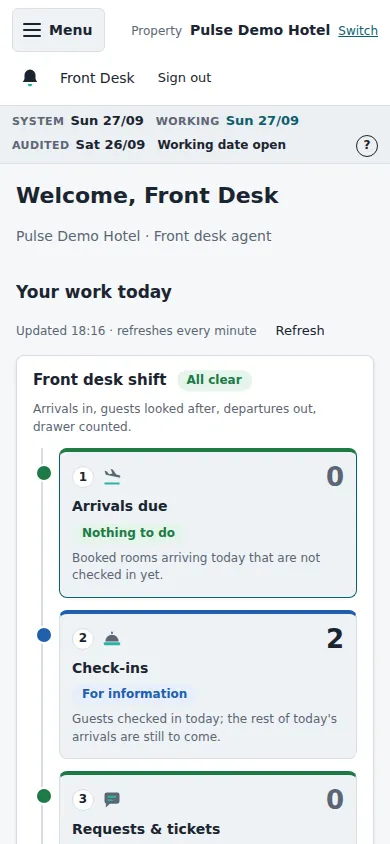
Pulse works in the phone's browser; nothing needs installing. On a narrow screen tap Menu at the top left to open the sidebar as a drawer. Wide tables scroll sideways inside their own box.